The Yarn Palette Creator makes a palette on its own, without a project: to plan colors before you have a place and dates, to match yarn you already have, or to share a palette with others. Open it from Create, then Palette, in the site menu.
Make a Palette
It works like a project's gauge, without ranges. Press Get Colors for My Palettes, Palette Gallery, Preset Gradients, Choose Colorways, From an Image, Random or Paste Colors or Code; then change, move, sort and add colors as in a gauge. See Colors & Yarn for each of these.
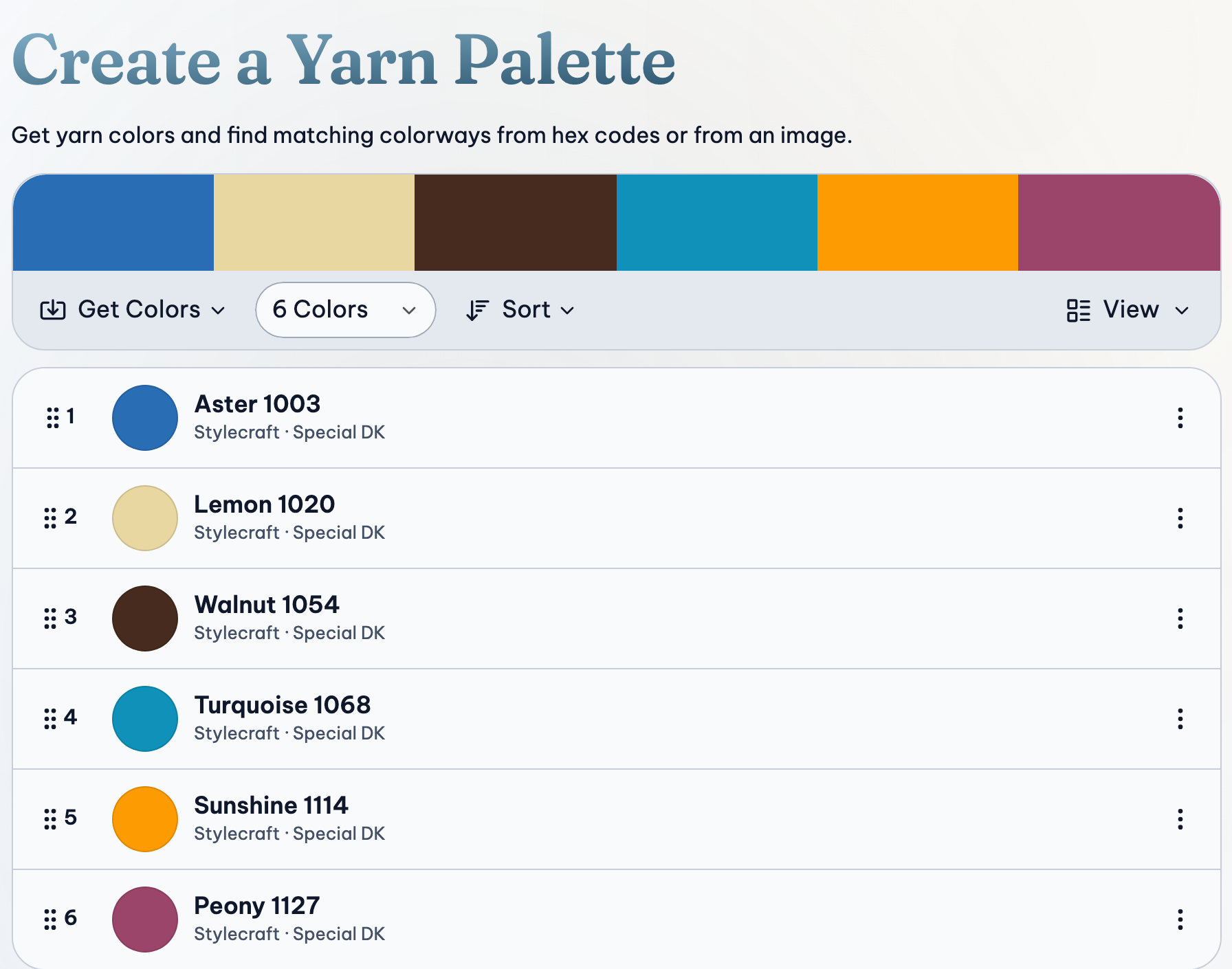
Choosing a palette from My Palettes or the Palette Gallery copies its colors into this one; it doesn't open that palette. To edit a saved palette itself, press Palette, then Open….
Undo and Redo are at the top (⌘ Cmd/Ctrl + z, and with Shift to redo). To rename the palette, press its name at the top, type a new one, and press Enter.
Saving
A new palette isn't saved until you save it, so trying things out won't clutter your library. Press Save Palette to keep it in My Library. From then on, changes save automatically a moment after you stop.
The Palette button at the top shows where it's saved: Saved in this browseror Saved to your account. If it says Not saved, press it, then Try Again.
The Palette Menu
Press Palette at the top for:
- Download: an image, the color codes, or the yarn names.
- Start a Project with It: opens the Project Planner with this palette on the temperature gauge.
- Share: Copy Link, and publish it to the gallery or edit its gallery page. Gallery & Ravelry.
- New Palette, Open… (one of your saved palettes), Duplicate (a copy, leaving this one as it is), and Move to Trash.
- Getting Started, Keyboard Shortcuts and Guides & Help.
Palettes and Projects
- To use a saved palette in a project, press Get Colors on a gauge, then My Palettes.
- To keep a project's colors as a palette, press Project, then the gauge under Palettes, then Save to My Palettes.
- A palette and the projects using it are separate: changing one doesn't change the other.
Related Guides
- Match Your Own Yarn, or a Photo: Use yarn you already have or can buy, or take the colors from a picture.
- Publish and Share a Gallery Page: Share a project or palette with a link, or publish it to the gallery and keep it up to date.