You can download a PDF of your colors, ranges and every day's weather to print and mark off as you go, or a spreadsheet to tick off. This guide also covers how to figure out how much of each yarn to buy.
Print Your Project
- Press Project, then Download, then PDF.
- Under Include, check the weather you want under Weather data (High, Average and Low Temperature to start with): it's a table of every day, each value in the color of its yarn.
- Under Look, choose Page Size (US Letter or A4). The pages on the left show what you'll print.
- Press Download, and print it.
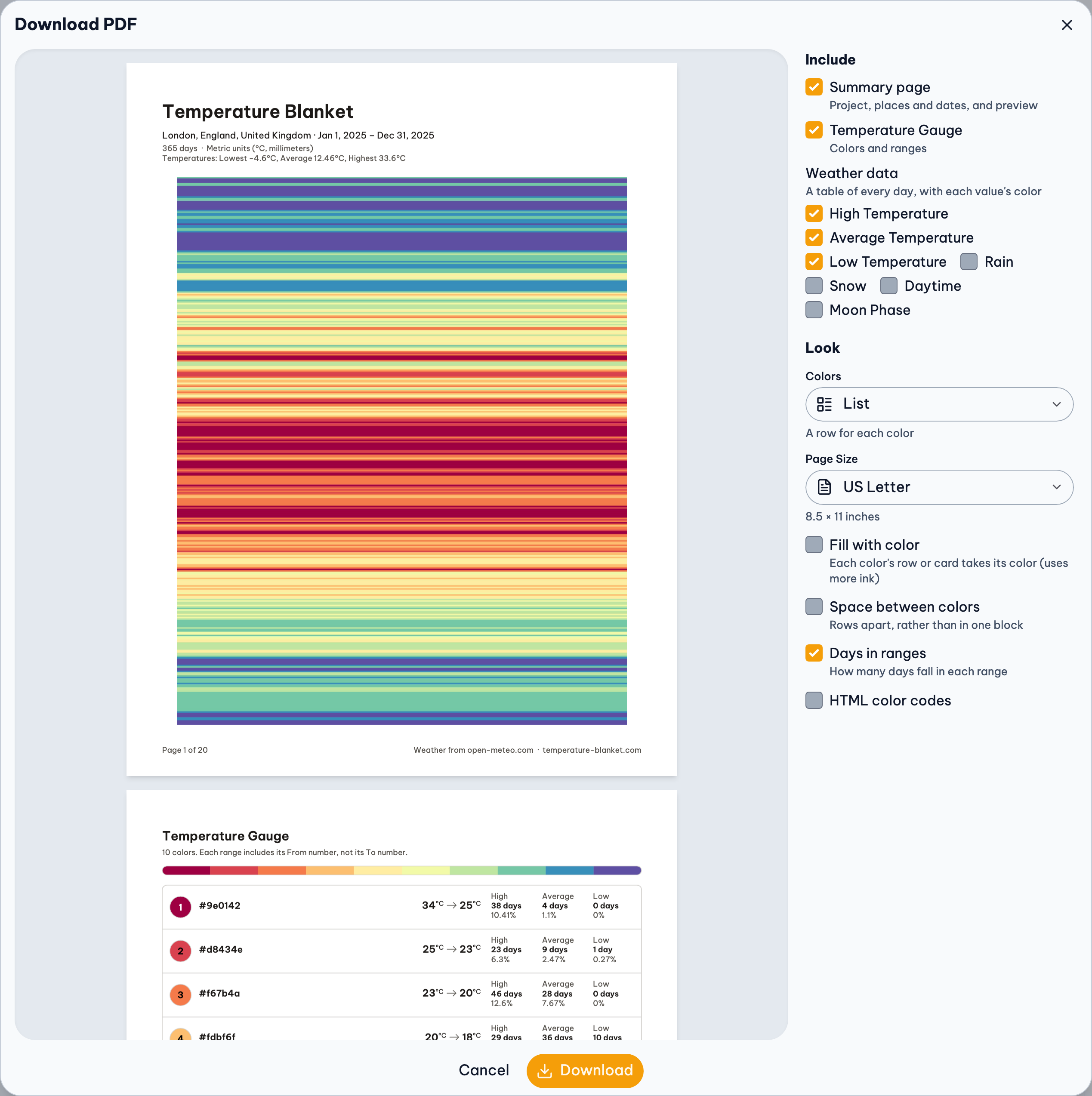
To save paper, list only the weather your preview uses, like just the high temperature.
Keep Your Place
The planner can keep track of where you are, and saves it with the project:
- On the Preview step, press Progress in the toolbar.
- Choose the last day you've made with ‹ and › (or tap the day to pick it from a calendar), and press Save. Below it, it says how much is made, like 62% made · 226 of 365 days.
- From then on, the button is a Progress menu: Edit Progress… to move on, and Show my progress to fade the days not made yet in the preview.
You can also set it from a day: press a day's circle in the weather table, then Set Progress to that day.
Or keep track outside the site:
- On paper: cross off each day in the PDF's weather table as you finish it, or keep a pencil mark at the last one.
- In a spreadsheet: press Download in the toolbar above the weather table, then Download CSV, open it in Excel, Numbers or Google Sheets, and add a column to tick off.
- In Google Sheets directly: choose Google Sheet in the Project menu's Download. It makes a spreadsheet in your Google Drive with the weather and your colors and ranges.
- On Ravelry: post your project, and update its Progress from Edit Gallery Page. Keeping Ravelry in sync.
If you're making it as the year goes, download a new PDF each month to get the new days. Crocheting or knitting along all year.
How Much of Each Yarn
- In the gauge, each color shows its number of days and its share of the blanket. (If they're hidden, press View, and turn on Days in ranges.)
- Work out how much yarn a row (or square) takes, and multiply by each color's days. Add a little extra for borders and joining.
In the PDF, turn on Days in ranges under Look to take the numbers to the shop.
Share a Picture
Download Image, in the preview's Share menu, saves the preview as a picture. It's handy for social media, a Ravelry project page, or keeping beside you as you work.
If Something Goes Wrong
The printed colors look off
Printers rarely match screens. Go by the yarn names in the PDF, not the printed color.
Nothing happens with Google Sheet
Google asks you to sign in in a new window. Allow pop-ups for this site, and try again.
The PDF is very long
The weather table has a row for every day. Turn off weather you don't need, or uncheck every value under Weather data and print the colors and ranges only.
More Detail
- Download: The PDF, the weather spreadsheet (CSV), and the preview image.
- Gauges & Ranges: Gauges, their ranges, and every option in the Ranges menu.
- Preview: Preview patterns, their settings, your progress, and seasons.