Many people make a temperature blanket over a year, one row each day or a few each week, as the weather happens. This guide shows how to set up one project and keep coming back to it all year.
Set It Up
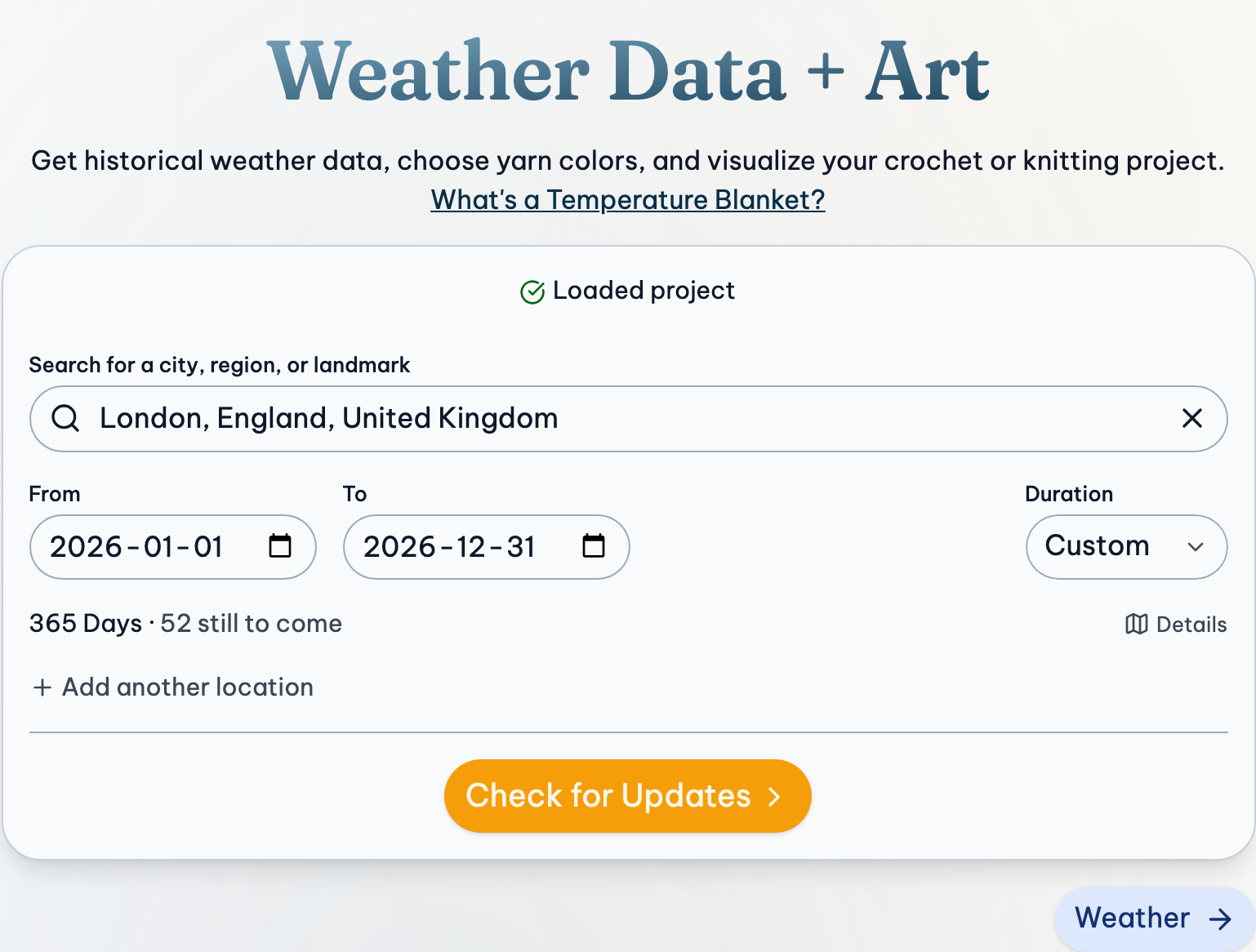
- Choose your place, and set Duration to One Year starting January 1 of this year (or whenever you start).
- Press Get Weather Data. Beside the number of days, it says how many are still to come. Their weather is added as they pass.
- Press Project, then Save Project. To name it, press its name at the top and type a new one.
Fix Your Ranges at the Start
Auto ranges are made from the weather you have so far, and remade as more comes in. So in March, your ranges would only cover winter and would keep changing, which means rows you've already made could end up a different color. It's better to set ranges that won't move:
- Think of the hottest and coldest days your place usually has in a year. A good way to find them is to try the project with last year's dates.
- Press Ranges, then Manual steps…, and choose steps that cover them, like every 5° from 35°.
- Press Save.
Ranges you set yourself never change on their own. Choosing ranges.
Each Time You Sit Down
- Open your project from My Library, or press Project, then Open…
- The main button says Add 3 New Days (with however many are waiting). Press it to add them. If a day you saved has different weather now, you're asked first, and the days you've already made stay as they were saved unless you update them.
- Find today's rows in the Table (press Today, and turn on Show Colors for each day's color; press a color for its yarn), or touch them in the preview.
When you're signed in, your project is on all your devices, so you can plan on your computer and check today's color on your phone.
Stay a Few Days Behind
Weather services can take up to a week to finish the newest days, so yesterday's numbers might still change. If you can, work about 6 days behind. Your saved days stay as they are unless you choose otherwise, but it's still a good idea to keep your own record. Downloading the PDF every month or so works well. Printing and keeping your place.
If Something Goes Wrong
Yesterday isn't there yet
The weather source may not have it yet. Try again later in the day, or tomorrow.
A day I've already made changed color
Saved days don't change by themselves, so check whether the ranges moved (use Manual steps, above). If you used Check for Updates and chose a day's new values, that day changed on purpose: its old values aren't kept. Don't worry, a blanket doesn't need to match to the decimal. When the weather changes.
Weather sources update recent days
The newest days are early data, and sources can update them for about a week. The next time you press Add New Days or Check for Updates, any day that's different now is shown, and your saved values stay unless you choose the new ones. Saved weather.
I edited a day, and now Check for Updates is gone
Once you edit the weather, it's treated as yours and isn't looked up again. The button says Get Weather Data instead, and it asks first, since Reload Weather Data replaces your edits. For a project still in progress, it's best not to edit the weather until the year is done.
More Detail
- Location & Dates: Choosing places and dates, and what to do when one is not found.
- Gauges & Ranges: Gauges, their ranges, and every option in the Ranges menu.
- My Library & Account: Saving, opening and syncing projects and palettes, the Trash, Preferences and your account.